NetSuite is a robust, widely deployed ERP, and even well-run instances hit real problems: a role that suddenly can’t see a report, an integration that stops syncing, a closed period that blocks a posting. Most of these have a safe, non-destructive diagnostic path you can run yourself before opening a case. A smaller set genuinely need an administrator, a developer, or NetSuite Support because they touch permissions, scripts, or account configuration you can’t see from a standard role.
Do not attempt fixes that change roles, permissions, scripts, or account-wide settings unless you are the account administrator or have been authorized to make that change. Test any correction in a sandbox account first whenever one is available and the issue can be reproduced there.
Fast diagnostic triage
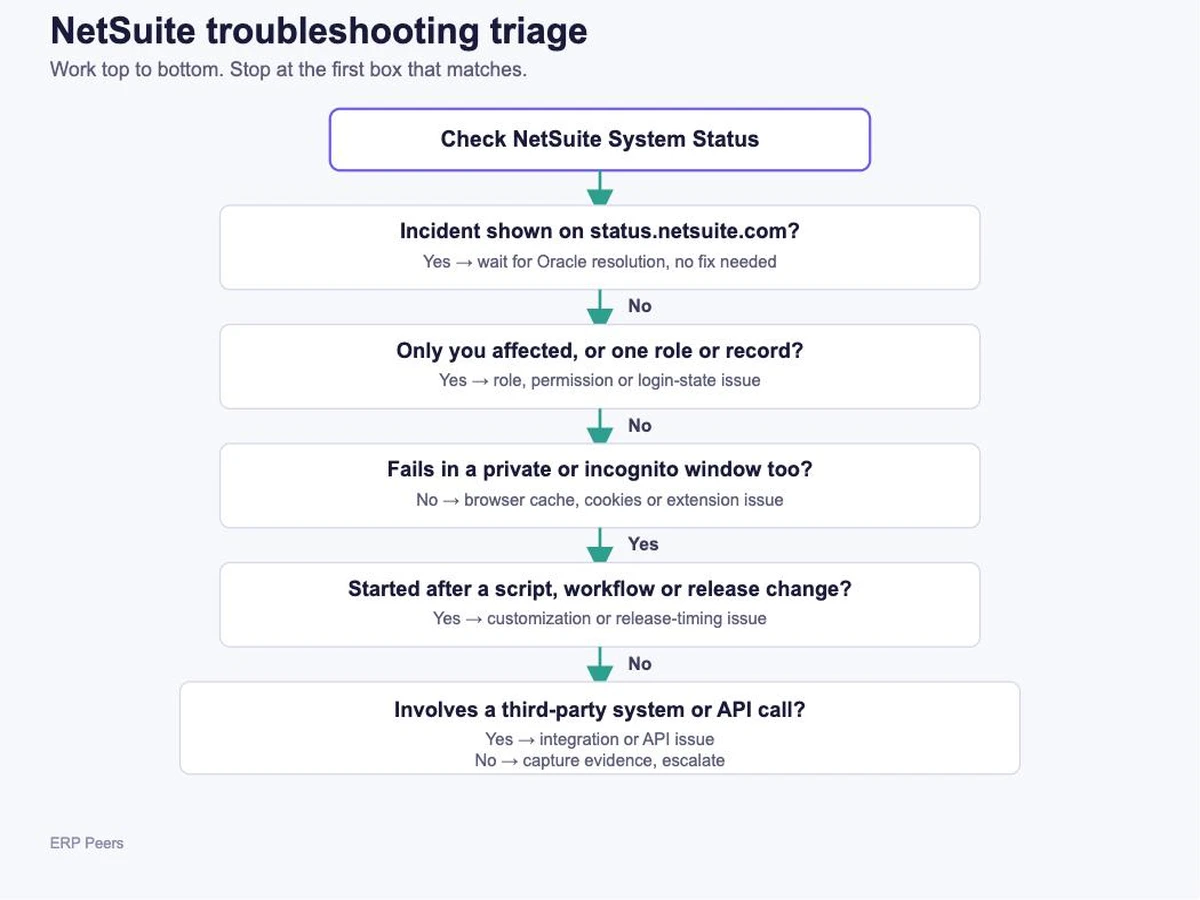
Before you dig into a specific issue, rule out the two most common non-NetSuite causes: a platform-wide incident, and a browser/session problem. Both take under two minutes to check and prevent wasted time on individual troubleshooting steps that were never going to fix a platform-side outage.
Work through this triage before diagnosing a specific issue
Check the NetSuite System Status page. If there’s an active incident, no local fix will help until Oracle resolves it.
Try a private/incognito window. If the issue disappears, it’s a browser cache, cookie, or extension problem, not a NetSuite problem.
Ask whether it’s just you. One user affected usually points to role, permission, or login state. Everyone affected usually points to a platform, integration, or customization issue.
Is it NetSuite, your role, your browser, a customization, or an integration?
Once triage rules out an outage and a browser problem, the fastest way to narrow the cause is to ask what changed and who’s affected:
Only you, or only one role: most likely a permission, role assignment, or login-state issue. See Login and Access or Access Control.
Everyone, and it started after a deploy: most likely a script, workflow, or configuration change. See SuiteScript and Workflow Errors.
A transaction won’t save or post: check whether the period is closed. See Accounting Period Lock.
NetSuite Login and Access Issues
Symptom: Login fails with “Incorrect login credentials,” “Account Locked,” or a similar message, even though you’re confident the username and password are correct.
Likely causes: wrong credentials, account lockout after repeated failed attempts, an expired password, a role/permission change, or a 2FA misconfiguration.
Safe checks: confirm you’re on the right account URL (production vs. sandbox), try the “Forgot Password” link, and confirm your 2FA device/app is current.
Required role/permission: unlocking a locked-out user is an administrator action, not something the locked-out user can do themselves.
Oracle source: By default, NetSuite locks a user out after five consecutive incorrect password attempts, though this threshold can be adjusted by an administrator on some accounts. An administrator unlocks access at Setup > Users/Roles > User Management > User Access Reset Tool: enter the user’s email, check “Unlock The User’s Access,” and save. A user without admin access should contact an account administrator directly, who can also set a temporary password from the employee record.
When to escalate: if no one in your organization holds administrator access, or the User Access Reset Tool doesn’t resolve it, contact NetSuite Support.
Account-specific caveat: 2FA and SSO configuration vary by account and by identity provider. If your organization uses SSO, password resets may need to go through your identity provider instead of NetSuite directly.
“The account you are trying to access is currently unavailable”
This specific message is common enough to call out on its own. It most often means one of three things: scheduled maintenance is in progress, a sandbox refresh is still completing in the background, or there’s a billing/account hold. It is not, on its own, evidence of data loss or a broken account.
Safe check: if you recently triggered or requested a sandbox refresh, this message during the refresh window is expected. Most refreshes complete within 30–60 minutes; larger, more customized accounts can take longer.
Safe check: confirm there’s no active maintenance window and no unresolved billing issue with your account team.
Classification: this is a documented, community-confirmed pattern (Oracle NetSuite’s own user community), not formal Oracle product documentation, so treat the sandbox-refresh timing explanation as a strong, common pattern rather than a guaranteed cause for every account.
When to escalate: if the message persists well past a completed refresh and outside any known maintenance window, contact NetSuite Support with the exact time you first saw it.
NetSuite Connectivity and Performance Issues
Symptom: Pages load slowly, or the session disconnects mid-task.
Likely causes: local network issues, a NetSuite-side incident, browser cache/cookies, a slow extension, or firewall/security settings blocking required NetSuite endpoints.
Safe checks, in order: System Status page first, then a private window, then a different browser, then disabling extensions one at a time.
When it’s a systemic slowdown, not a one-off: broad, sustained slowness (dashboards, saved searches, or scripts consistently underperforming) usually traces back to search/report design or customization load, not a browser setting. That diagnosis is a deeper topic than a quick check can cover; see ERP Peers’ dedicated guide on speeding up a slow NetSuite instance for the full diagnostic path.
NetSuite Data Discrepancies
Symptom: Sales orders, balances, or report totals don’t match your accounting system, bank feed, or expected figures.
Likely causes: a failed or partial data import, manual entry error, a transaction posted in the wrong accounting period, or a custom script/workflow interfering with normal data flow.
Safe checks: re-verify manual entries, confirm import mapping was correct, confirm the transaction posted to the intended period, and run a reconciliation against the external source.
Evidence to pull: the record’s System Notes (line-level “History” link on the transaction, or Transactions > Management > View Audit Trail for a broader view) shows exactly who changed what and when, which is usually faster than re-checking manually.
A save is blocked because someone else edited the record first: NetSuite blocks the save rather than silently overwriting the other person’s change. Don’t force a repeated save; reload the record, note what changed, and reapply your edit against the current version. The System Notes/Audit Trail evidence above shows who made the conflicting change and when.
A common misconception worth correcting directly: “restore from a recent backup” is not a self-service option for fixing a data-entry mistake. Oracle’s disaster-recovery process restores an account only for genuine platform-level disasters, at Oracle’s own discretion, and is explicitly not used for routine issues. For a real data discrepancy, the correct paths are: manual correction, a corrected CSV re-import, or reversing/re-posting the affected transaction, not a backup restore.
NetSuite Access Control and Permission Issues
Symptom: A user can’t see a report, record, or module they should have access to.
Likely causes: incorrect role assignment, a permission accidentally changed, a record-level visibility restriction, or a misconfigured custom role.
Required role/permission: reviewing and correcting role assignments requires administrator access (Setup > Users/Roles > Manage Roles).
Safe checks: confirm the assigned role, confirm that role’s permission level for the specific record type, and, if you have admin access, use the “View As” / login-as feature to reproduce what the affected user actually sees, rather than guessing.
Caveat: custom roles can restrict access in ways a standard role wouldn’t, so “it works for me” from an admin account doesn’t rule out a real permission gap for the affected role.
A permission error appears mid-action, or a report/search returns fewer rows for one user than another: this is usually the same access-control root cause surfacing differently, not a separate problem. Apply the same role and permission checks above; if the missing rows are specifically inside a report or saved search, also see Reports and Saved Search Issues.
Third-Party Integration Sync Issues
Symptom: A connected system (CRM, e-commerce platform, EDI, middleware) stops syncing orders, customers, or inventory correctly.
Likely causes: an expired or revoked access token, a role that lost a required permission, an API governance/concurrency limit being hit, a field-mapping mismatch, or a change on either system’s side (a NetSuite release, or a vendor API update).
Safe checks: review integration logs on both sides, confirm the token and its role still have the required permissions (including “Log in using Access Tokens” and the specific record-type access the integration needs), and check Setup > Integration > Concurrency Monitor if requests are timing out or returning 429/concurrency-limit errors.
Evidence to pull: the exact error code or HTTP status from the integration log, and the timestamp of the last successful sync.
Symptom: A report or saved search times out, returns incomplete results, or won’t generate.
Likely causes: a broad, unfiltered date range; too many joined fields; pulling raw transaction-line detail instead of a summary; or a permissions gap for the user running it.
Safe checks: narrow the date range, remove unnecessary joins/columns, switch to a summary rather than detail view, and confirm the user’s role can access every record type the search touches.
Rule of thumb: a well-scoped saved search should return in well under a minute; if your core searches or financial reports routinely take longer, that’s a design problem worth fixing rather than working around.
Formula help: if the issue is a specific saved-search formula rather than performance, ERP Peers maintains a separate saved search formula library with working examples.
CSV Import and Export Errors
Symptom: A CSV import fails, partially completes, or reports “invalid format” even though the file looks correct.
Formatting/scan errors (caught before any data is touched): usually a character-encoding mismatch. Return to the Scan & Upload step, change the encoding option, and rescan rather than restarting from scratch.
Read-only field errors: in Import Assistant’s Advanced Options, enabling “Ignore Read-Only Fields” resolves imports that fail solely because they’re trying to write to a system-managed field.
Date format errors: the CSV’s date values must match the format set at Home > Set Preferences, not just look correct to a human reader.
Post-processing errors (the import completes, but rows are rejected afterward): NetSuite emails a zip file listing every rejected row with its column and reason. Check this before assuming the whole import failed.
Name-based reference errors: if your CSV references related records by name instead of internal/external ID, mismatched or duplicate names will fail silently for those rows. Switching to internal or external IDs is the more reliable long-term fix.
Preventing duplicates on retry: if a batch partially succeeds and you re-run the whole file to catch the failures, the already-successful rows will try to import again. Give every row a unique External ID (built from values that are genuinely unique to that record) so re-imports don’t create duplicates.
SuiteScript and Workflow Errors
Symptom: A workflow doesn’t trigger, a record gets stuck in a pending state, or a scheduled script silently stops running.
Likely causes: a workflow condition or trigger that no longer matches current data, a script hitting governance limits, a scheduled script interrupted by a server restart, or, for stuck approval records, a known sync gap between workflow state and the underlying record.
Safe checks: review the script’s execution log (Customization > Scripting > Script Execution Logs, or the Execution Log subtab on the script deployment) for the actual error, and check the Scheduled Script Status page to see whether the script is running, queued, or failed.
Governance caveat: a company is limited to roughly 100,000 log calls across all scripts per 60-minute period by default (this can vary by SuiteCloud plan and account configuration), and execution logs are purged (system errors after 60 days, user logs after 30), so if you need to keep a record long-term, that has to be built into the script’s own logic, not assumed from logs.
A record genuinely stuck in the wrong workflow state (not just slow) can sometimes be moved with a Mass Update to the correct state, which changes data directly and should be done by an administrator, ideally tested in sandbox first.
When to escalate: anything requiring a script or workflow logic change is a developer/administrator task, not a self-service fix for an end user.
Accounting Period Lock Errors
Symptom: A transaction won’t save, with an error indicating the GL impact falls in a closed or locked period.
Likely cause: the transaction’s date falls in a period that’s been locked or closed for that transaction type (A/P, A/R, or payroll can be locked independently).
Safe checks: confirm which period the transaction should actually post to, and whether that period is locked specifically for this transaction type. A locked period typically won’t appear in the Posting Period dropdown, so NetSuite defaults new transactions to the current open period in most configurations.
Required role/permission: only a user with the Override Period Restrictions permission can post into a locked period; otherwise, an administrator needs to reopen or unlock that period/transaction type.
When not to proceed: reopening a closed accounting period has real reporting and audit consequences, which is a judgment call for accounting/finance leadership, not something to do just to make an error go away.
NetSuite Mobile App and Notification Issues
Symptom: The mobile app won’t log in, loads incomplete data, or maintenance notifications don’t match what was communicated.
Mobile app: confirm credentials and 2FA, confirm the app is updated to a current version, test on a different network, and reinstall if the issue persists after both.
Maintenance notifications: check the official maintenance schedule directly rather than relying on a forwarded or cached notice, and confirm your NetSuite time zone setting matches what you expect. A time zone mismatch is a common source of “this doesn’t match what I was told.”
Sandbox vs Production: Where to Diagnose
Reproduce and test a fix in sandbox whenever the issue can be reproduced there and the fix isn’t urgent. This protects production data and lets you confirm a script, workflow, or configuration change actually works before it touches real transactions. Diagnose directly in production only when the issue is production-specific (a real integration credential, a real customer’s data, a live period-close deadline) and can’t be reproduced any other way.
Sandbox has its own behavior worth knowing before you rely on it for testing: data refresh timing, what does and doesn’t carry over, and how integrations behave against a refreshed sandbox. ERP Peers covers this in detail in the sandbox refresh best-practices guide and the broader NetSuite sandbox guide.
Escalation Package: What Evidence to Capture
A support ticket or an internal escalation moves faster with the right evidence attached the first time, rather than a back-and-forth to collect it after the fact. If you escalate directly to NetSuite Support, note that Oracle triages cases by severity level: stating the real business impact clearly helps set the right response-time expectation.
A generic on-screen error with no specific description may still include a case or reference number, even when the message text itself isn’t descriptive. Capture whatever number is shown along with the exact wording, the timestamp, and what you were doing when it appeared, then rule out a platform-wide incident (see Fast diagnostic triage) before retrying. Repeated blind retries rarely clear a generic error and can create duplicate records if the action was a save or submit; if one retry doesn’t resolve it, stop and escalate what you captured instead of continuing to retry.
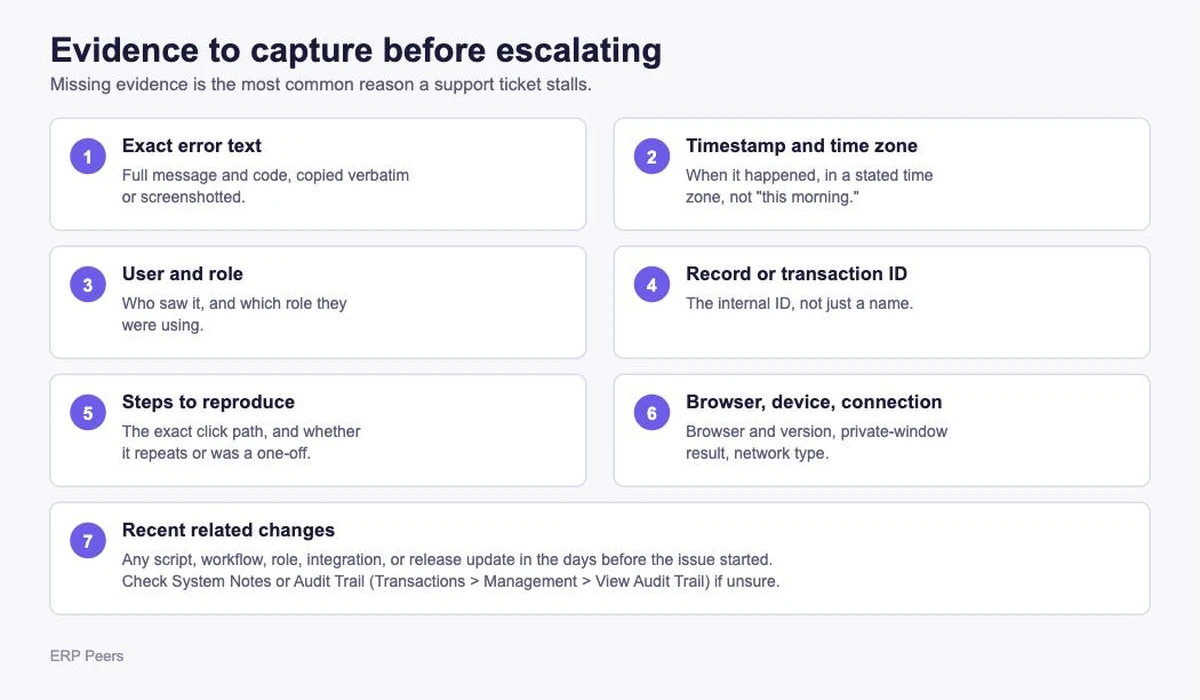
Capture this evidence before opening a support ticket
Reproducibility matters as much as the evidence itself: note explicitly whether the issue happens every time, intermittently, or was a one-off. That single detail changes how a support team or developer prioritizes and investigates it.
Preventative Measures
A few ongoing habits meaningfully reduce how often you hit the issues above:
Routine health checks: periodically review execution logs, integration logs, and performance reports rather than waiting for a user to report a problem.
Stay current on releases: NetSuite’s scheduled version upgrades and periodic updates can change behavior your customizations depend on. Review release notes for anything touching your configured features.
Test in sandbox first: for any script, workflow, or configuration change, not just major ones.
Keep network and access basics solid: stable connectivity, current browsers, and correctly scoped firewall/VPN rules prevent a real share of “NetSuite is broken” reports that are actually local issues.
Expert NetSuite Support for Complex Issues
Many of the issues above are safely solvable with the checks in this guide. Some aren’t: intricate customizations, integration conflicts spanning multiple systems, or a data migration gone wrong benefit from a team that’s diagnosed the same patterns across many NetSuite accounts.
If the underlying problem is not one error to fix but a NetSuite implementation that never really worked, whether it stalled, went over budget, or went live in a state the business cannot actually operate on, that is a different kind of project. Our NetSuite rescue services team handles that scenario specifically, starting with an audit of what is actually wrong rather than another round of piecemeal fixes.
For an active issue that needs a hands-on diagnosis rather than a self-service checklist, NetSuite Support Services covers one-time troubleshooting help. For ongoing coverage so issues get caught before they reach end users, see NetSuite Managed Services. For integration-specific failures spanning NetSuite and a connected system, see NetSuite Integration services.
Scope, timing, and outcomes depend on your specific implementation and can’t be guaranteed in advance. A structured first conversation can usually tell you within an hour whether an issue is a quick fix or something bigger.
ERP Peers: Your Trusted NetSuite Support Partner!
With ERP Peers, you’re not just getting technical support; you’re gaining a long-term partner in your NetSuite journey. Our certified consultants bring years of expertise to provide proactive solutions, ensuring that your system operates seamlessly. From troubleshooting and optimizations to complex integrations, we’re committed to delivering tailored services that align with your business goals.
Frequently Asked Questions
No. It usually means scheduled maintenance, a sandbox refresh still completing, or an account or billing hold, not lost data.
No. Oracle's backup and disaster-recovery process is not a self-service option and is reserved for genuine platform-level disasters. Routine mistakes are fixed by manual correction, a corrected CSV re-import, or reversing the transaction.
Only an account administrator, using the User Access Reset Tool at Setup > Users/Roles > User Management > User Access Reset Tool. A locked-out user cannot unlock their own account.
Test in sandbox whenever the issue can be reproduced there and the fix isn't urgent. Diagnose directly in production only when the issue is genuinely production-specific and can't be reproduced elsewhere.
The exact error text, timestamp with time zone, affected user and role, the specific record or transaction ID, exact reproduction steps, browser and device details, and any recent script, workflow, or configuration changes.

 Verified Review