

Get In Touch
Our customer support team is available for help.
NetSuite Integration
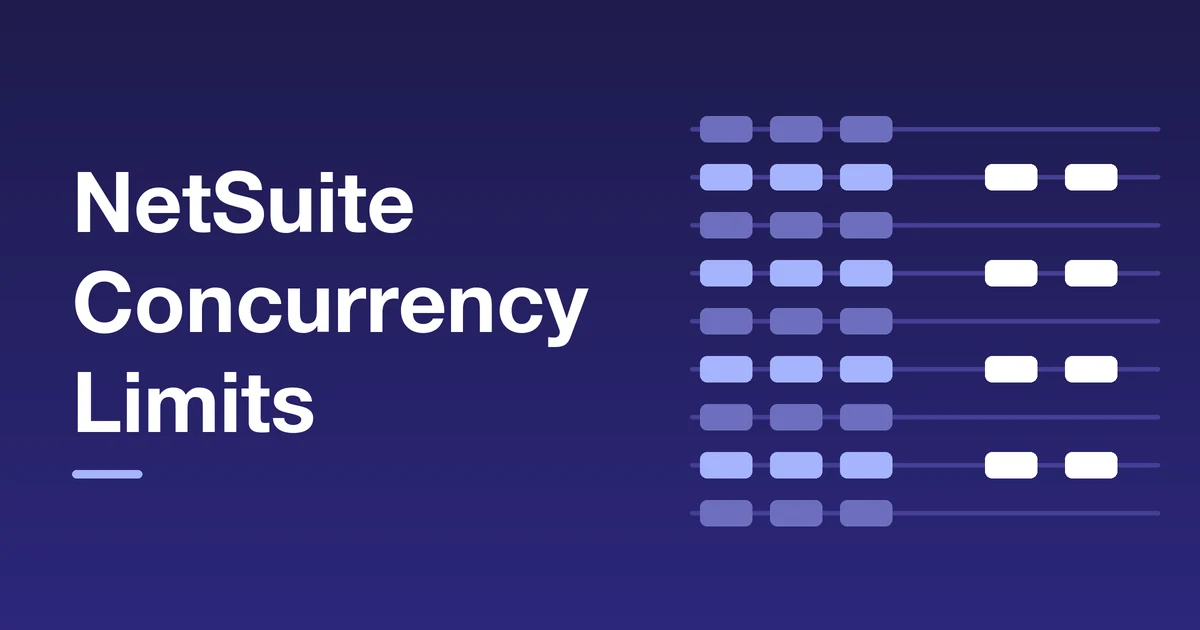
The NetSuite concurrency limit caps how many integration requests can be in flight at the same moment. It is not a requests-per-minute rate limit. Integrations in the account share it, apart from a short list of Oracle internal applications.
Your limit depends on your service tier and your SuiteCloud Plus licenses. When integrations ask for more than the limit allows, NetSuite rejects the extra requests. That often happens at peak: a promotion, a month-end close or a busy AI client.
This guide covers the numbers by tier, what draws on the limit, what failure looks like, and a worksheet for sizing your own peak. The sizing method is ERP Peers’ own, not an Oracle formula.
The short answer
Concurrent means in flight at once. A request that has been sent and not yet answered holds one slot. When it finishes, the slot frees up. The limit is the number of slots your account has.
The mechanism is called concurrency governance. It governs simultaneous requests rather than total volume. A thousand short requests spread across a minute can fit comfortably. Twenty slow requests sent together can fill a small account.
Plan below the limit, not at it. NetSuite can let a short burst exceed the limit, but a design that relies on that can fail at the worst moment.
SuiteCloud Plus also raises other capacity: script processors, CSV import queues, asynchronous search queues and REST asynchronous processors. Those are separate settings from the concurrency limit. The table in the SuiteCloud Plus section lists them.
Some Oracle internal applications are exempt. Their requests do not count toward the limit, and they do not appear in Concurrency Monitor or Integration Governance data. At the time of writing the list is NetSuite Connector, NetSuite for Outlook, NetSuite Point of Sale and SuiteProjects Pro, and it can change.
The base limit comes from your service tier. The service tier also sets users, storage and monthly transaction lines, so read the two together.
| Service tier | Base limit | Licenses you can buy | Limit at the maximum |
|---|---|---|---|
| Standard | 5 | 1 | 15 |
| Premium | 15 | 3 | 45 |
| Enterprise | 20 | 6 | 80 |
| Ultimate | 20 | 12 | 140 |
Earlier tiers have different base limits:
Worked example: tier 1 with five licenses is 15 + 5 × 10 = 65.
How the limit applies by account type:
You can read the figure on the Integration Governance page, under Setup, Integration, Integration Management. The menu path can vary by release.
SuiteCloud Plus is a paid add-on license that raises integration capacity. Licenses are not included in any service tier. You buy them separately, up to a maximum that depends on the tier. This guide does not quote prices.
The arithmetic is the same on every tier. A Premium account with two licenses has 15 + 2 × 10 = 35. An Ultimate account at its twelve-license maximum has 20 + 12 × 10 = 140.
Licenses also raise capacity that is not part of the concurrency limit:
| Service tier | SuiteCloud and REST asynchronous processors | CSV import queues × threads | Asynchronous search queues |
|---|---|---|---|
| Standard | 2 to 5 | 1 × 1 to 5 × 2 | 1 to 5 |
| Premium | 2 to 15 | 1 × 1 to 5 × 10 | 1 to 5 |
| Enterprise | 2 to 30 | 1 × 1 to 5 × 10 | 1 to 5 |
| Ultimate | 2 to 60 | 1 × 1 to 5 × 10 | 1 to 5 |
Confirm your cap. Standard accounts can buy one license. Premium, Enterprise and Ultimate accounts can buy more, up to the maximums above. Your Oracle account manager can confirm your own limit.
Questions to ask your Oracle account manager:
Most accounts do not have one integration. They have a storefront, a warehouse system, payroll, a bank feed and increasingly an AI client. All of them draw on the same pool. This table maps each common source to the limit.
| Traffic source | Counts toward the account pool? | How it is limited | Typical example |
|---|---|---|---|
| REST web services integrations | Yes. Each request counts. | Account limit, plus an optional limit per integration. | An iPaaS flow that creates sales orders |
| RESTlet calls | Yes. | Account limit. No per-user limit when governance is enabled. | A custom endpoint another system calls |
| SOAP with request-level credentials or login | Yes. | Per-user limits remain, in addition to the account limit. | An older integration that logs in as a user |
| SOAP with token-based authentication | Yes. | No per-user limit when governance is enabled. One user can send parallel requests up to the account limit. | A token-based integration built before REST |
| NetSuite AI Connector Service | Yes. | Shares the unallocated pool, or uses a share an administrator reserves for it. | An AI client calling an MCP tool |
| Celigo flows | Yes. They reach NetSuite through its APIs. | Each connection has its own concurrency setting, which should match NetSuite. | A scheduled export or a real-time order import |
| Exempt internal applications | No. | Excluded from concurrency governance and from monitoring data. | NetSuite Connector |
Request-level credentials and login keep per-user limits for SOAP. Token-based SOAP and RESTlets have no per-user limit when concurrency governance is enabled, so one user can send parallel SOAP requests up to the account limit.
Sessions authenticated with SuiteSignOn are governed per user and per account. The token-based and RESTlet benefit applies only when governance is enabled, and SOAP Web Services Preferences shows whether it is.
Older setups guaranteed 10 concurrent SOAP requests to each designated web services user with a SuiteCloud Plus license. That guarantee no longer applies, because those requests now draw from the shared pool.
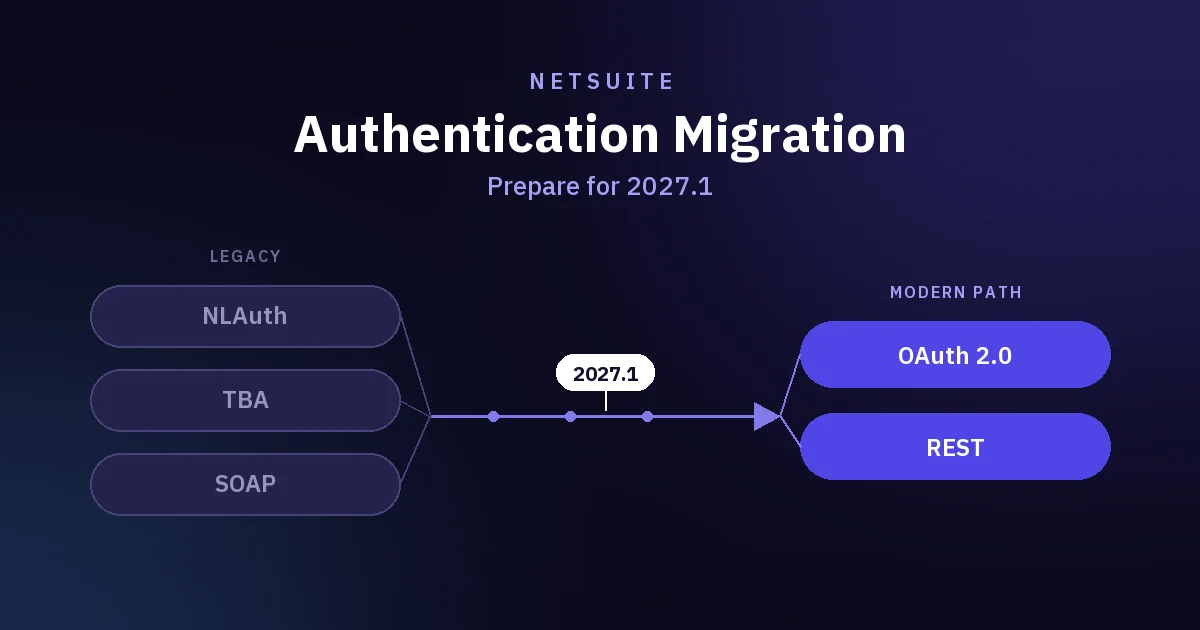
If you are moving integrations to OAuth 2.0, the TBA migration guide covers which are affected. Check each one’s concurrency settings as part of the move.
An administrator can give one integration a fixed share of the pool. This protects a critical flow, or caps an application you do not control that sends occasional bursts. The minimum unallocated limit is 1, and any share you allocate is unavailable to every integration without one.
Best practice is a single account limit with no individual allocations, unless you have a clear reason. If your tier or license expires, the account limit resets to its default, and the administrator is warned if allocations exceed it.
The NetSuite AI Connector Service always sits inside the account limit. With a total limit of five and two slots assigned to a REST integration, it can use only the remaining three. When it goes over, the AI client sees a Too Many Requests error and has to retry.
A prompt that calls an MCP tool is typically preceded by additional protocol requests. Count those when you size the account, because several people prompting at once can add up.
Celigo gives every NetSuite connection its own concurrency setting and advises aligning it with your NetSuite limit. With several connections, we recommend dividing that limit among them and the other callers, so do not set each one to the full account figure. Celigo suggests a second connection once one connection needs more than 25 concurrent requests.
If your flows run on Celigo, check these settings on both sides. Our Celigo integration page describes how ERP Peers supports them.
NetSuite rejects requests over the limit. What the caller sees depends on the integration type.
| Integration type | Case | What the caller receives |
|---|---|---|
| RESTlet | Any request over the limit | HTTP 400 Bad Request with the SuiteScript error code SSS_REQUEST_LIMIT_EXCEEDED. |
| REST web services | Any request over the limit | HTTP status 429 with the error code CONCURRENCY_LIMIT_EXCEEDED and the detail “Concurrent request limit exceeded. Request blocked.” |
| SOAP | Request-level credentials or login/logout | ExceededRequestLimitFault with the message WS_CONCUR_SESSION_DISALLWD. |
| SOAP | Token-based | ExceededConcurrentRequestLimitFault with the message WS_REQUEST_BLOCKED. |
| AI Connector Service | Any request over the limit | A Too Many Requests error. The AI client must retry. |
Every client has to retry rejected requests. Wait before the first retry and lengthen the delay on later attempts. Do not synchronize retries across threads or applications, because that creates artificial peaks. For interactive screens, retry in the background.
We recommend three habits. Randomize the delay. Cap the number of attempts. Make sure a retried write cannot create a duplicate record.
Retrying after a timeout or no response is the risky case, because the first write may already have succeeded. Use an external ID, or look the record up before creating it, so a retry cannot create a second copy.
| Symptom | Likely cause | How to confirm | First fix |
|---|---|---|---|
| Errors cluster at month-end or during sales peaks and disappear off-peak | Combined peak above the account limit | Compare Concurrency Monitor peak and over-limit rate with your limit | Stagger schedules and lower per-flow concurrency before buying capacity |
| Errors appear with no increase in traffic | Requests take longer, so each holds its slot longer | Compare request duration trends with the over-limit rate | Fix the slow searches or scripts first |
| One integration fails while others run normally | Another caller is using the pool, this integration’s own allocation is too low, or a per-user SOAP limit applies (login or request-level credentials) | Confirm the error is a concurrency code, then check allocations on the Integration Governance page | Rebalance allocations, check whether the integration uses SOAP login or request-level credentials (per-user limit), or throttle the heavy caller |
| Errors rise sharply after the first failures | Retries are synchronized and create new peaks | Look for bursts of retries at the same timestamps in integration logs | Add randomized, lengthening delays |
| AI client reports Too Many Requests while integrations look quiet | AI Connector Service is sharing the pool and sending protocol requests | Check the AI client for Too Many Requests errors during AI activity | Keep AI use out of the integration peak, or add capacity |
| Everything is slow but nothing is rejected | Not a concurrency rejection | Callers receive no concurrency error codes, including in iPaaS run logs, and the monitor over-limit rate is also low (its peak is an estimate and it excludes exempt applications) | Look at client-side throttling, saved searches, scripts and data volume |
If requests are slow rather than rejected, the problem sits elsewhere. Our guide to speeding up a slow NetSuite instance covers the usual suspects.
For what to watch beyond concurrency, see our guide to integration monitoring and error handling.
Oracle gives no formula for turning peak load into a license count. This is the estimate ERP Peers suggests.
The estimate
Estimated in-flight requests = peak requests per minute × average request duration in seconds ÷ 60
This is a standard queueing relationship (Little’s law) with the rate converted from minutes to seconds. At 600 requests a minute and 2 seconds each, about 20 requests are in flight.
The formula gives an average over the window you measured. Actual peaks can run above it for five reasons.
Add a safety margin on top of the estimate and write it down.
Fill this in for the busiest hour you can find in your logs. Use the same hour for every row, so overlap is counted.
| Caller | Peak requests per minute | Average duration, seconds | Estimated in-flight requests |
|---|---|---|---|
| Integration or flow 1 | Enter from logs | Enter from logs | Rate × seconds ÷ 60 |
| Integration or flow 2 | Enter from logs | Enter from logs | Rate × seconds ÷ 60 |
| Scripts that call out | Enter from logs | Enter from logs | Rate × seconds ÷ 60 |
| AI client and AI Connector Service | Requests per minute across active users | Enter from logs | Rate × seconds ÷ 60 |
| Total, plus your safety margin | Sum of the rows | Not applicable | Compare with your account limit |
These scenarios are illustrative. They show the arithmetic. They are not client engagements or benchmarks. Every rate, duration and safety margin is an assumption, and the 25% margin is an example, not a recommendation.
A Premium account with one license has a limit of 25. The storefront, the warehouse system and an inventory sync all run during a promotion. The scenario assumes an iPaaS or custom integration, because NetSuite Connector requests are exempt.
| Caller | Peak requests per minute | Average duration, seconds | Estimated in-flight requests |
|---|---|---|---|
| Order import | 300 | 2 | 10 |
| Inventory sync | 120 | 3 | 6 |
| Fulfillment updates | 90 | 2 | 3 |
| Total estimate | — | — | 19 |
| Total plus 25% safety margin | — | — | About 24 |
With the margin the estimate is 24 against a limit of 25, which is too tight. If the promotion lifts order import by a third, the estimate reaches 22, or about 28 with the margin.
Moving the inventory sync to a quieter window frees 6 slots with no license, but check that a later sync does not leave stock stale during the promotion. Lower order-import parallelism or batched inventory updates are alternatives. On the decision path below, this account stops at step 4.
A Standard account with its one license has a limit of 15. At close, four jobs start at the same time.
| Caller | Peak requests per minute | Average duration, seconds | Estimated in-flight requests |
|---|---|---|---|
| Bill import | 60 | 4 | 4 |
| Payroll journals | 30 | 6 | 3 |
| Bank feed | 120 | 1.5 | 3 |
| Reporting extract | 45 | 8 | 6 |
| Total estimate | — | — | 16 |
The estimate is 16 against a limit of 15, and Standard accounts can add only one license. Running the reporting extract after the other three jobs finish brings the peak to 10, which uses two-thirds of the limit, or about 13 of 15 with the margin. The cost is a later extract. On the decision path below, this account stops at step 3.
An Enterprise account with no licenses has a limit of 20. Integrations use 11 slots at peak. Four people are using an AI client at once. We assume 3 requests in flight per person as a cautious figure, counting protocol requests. This table uses that in-flight figure directly instead of rate and duration.
| Caller | Assumed in-flight per source | Sources | Estimated in-flight requests |
|---|---|---|---|
| Integrations at peak | 11 | 1 | 11 |
| AI client activity | 3 | 4 | 12 |
| Total estimate | — | — | 23 |
The total is 23 against 20, or about 29 with the margin, so the AI client can see Too Many Requests when integrations peak. Reserving a fixed share for the AI Connector Service only re-divides a pool that is already short. The options are to keep AI use out of the integration peak, reduce integration load, or add one license for a limit of 30.
On the decision path below, keeping AI use out of the peak is step 4. If that is not practical, the account reaches step 6, is below its Enterprise license maximum, and adds one license, which leaves a thin margin.
Answer in order. Stop at the first step that fixes the errors, then re-measure. If errors continue, go to the next step.
These usually cost less than a license.
If the numbers point to a design problem, our integration architecture guide covers the choices that decide how much concurrency a flow needs.
Run through this before your next busy period.
Figures were checked against Oracle’s NetSuite help pages on 4 November 2026. Tier names, limits and license maximums can change, so confirm them in your own account. License maximums vary by contract, so confirm yours. The sizing method, symptom table and reduce-demand list are ERP Peers’ own analysis, and the scenarios are illustrative.
This guide is not endorsed by Oracle.
Integration capacity review
Share your integrations, your peak periods and the errors you see, and have your account limit and a Concurrency Monitor view ready. We will give you a view on whether to stagger, throttle or add capacity.
Our customer support team is available for help.
Need help with NetSuite?
Chat with our team.